Your Dashboard
The dashboard is your home base in Trimlii. Here you can quickly access all the features you need to manage your salon.
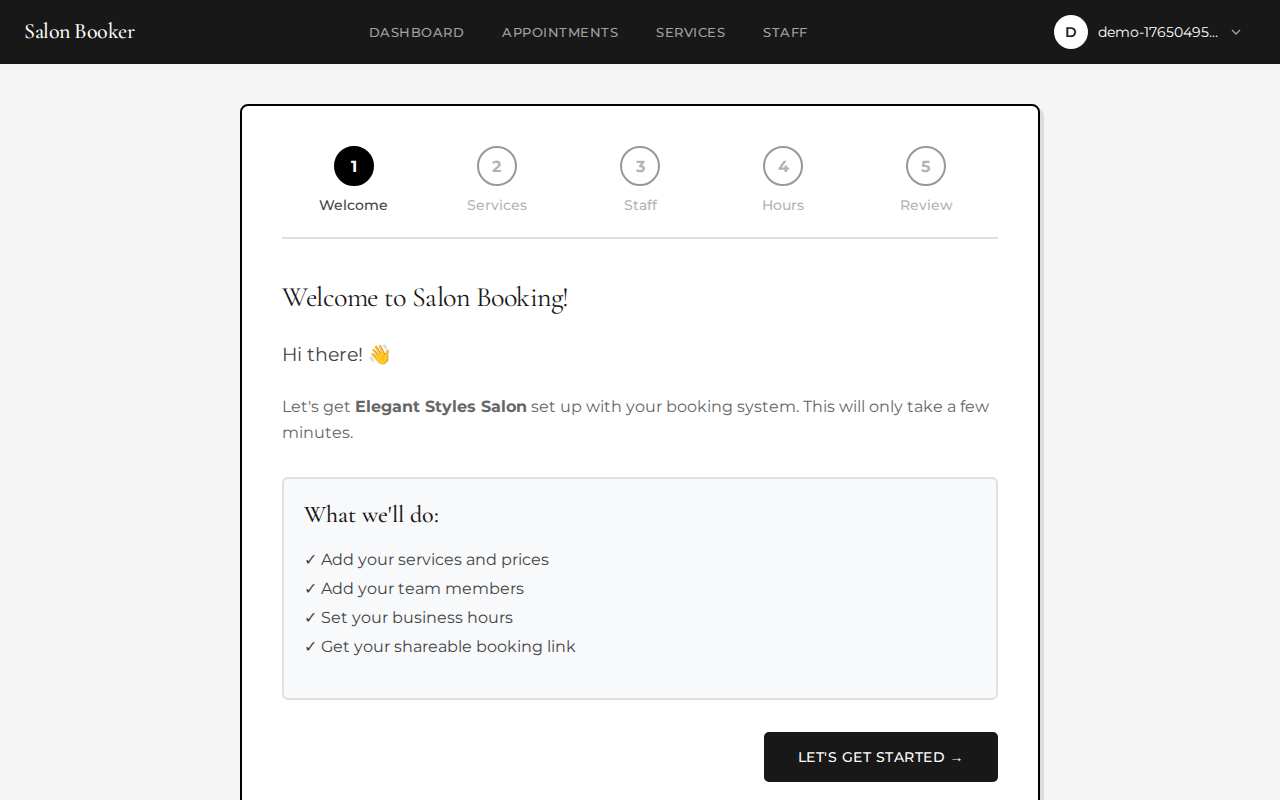
Your Booking Link
At the top of your dashboard, you'll see your unique booking link. This is the URL clients use to book appointments with you. Click the "Copy" button to copy it to your clipboard.
Your booking link looks like: app.trimlii.com/your-salon-name
Put your booking link everywhere! Add it to your Instagram bio, Facebook page, Google Business profile, website, email signature, and business cards. The more places clients can find it, the more bookings you'll receive.
Quick Actions
The dashboard provides quick access to all management pages:
- View Appointments — See all your upcoming and past appointments
- Manage Services — Add or edit services you offer
- Manage Staff — Add team members and set their schedules
- Business Hours — Set when your salon is open
- Holidays & Closures — Block off dates you're closed
- View Booking Page — See what clients see when they book
Getting Started Checklist
The dashboard shows a checklist of tasks to complete. Check items off as you go to ensure your booking page is fully set up:
- Add services
- Add team members
- Set business hours
- Set deposit amount
- Set up holidays & closures
- Connect Stripe to collect deposits (PRO)
Viewing Appointments
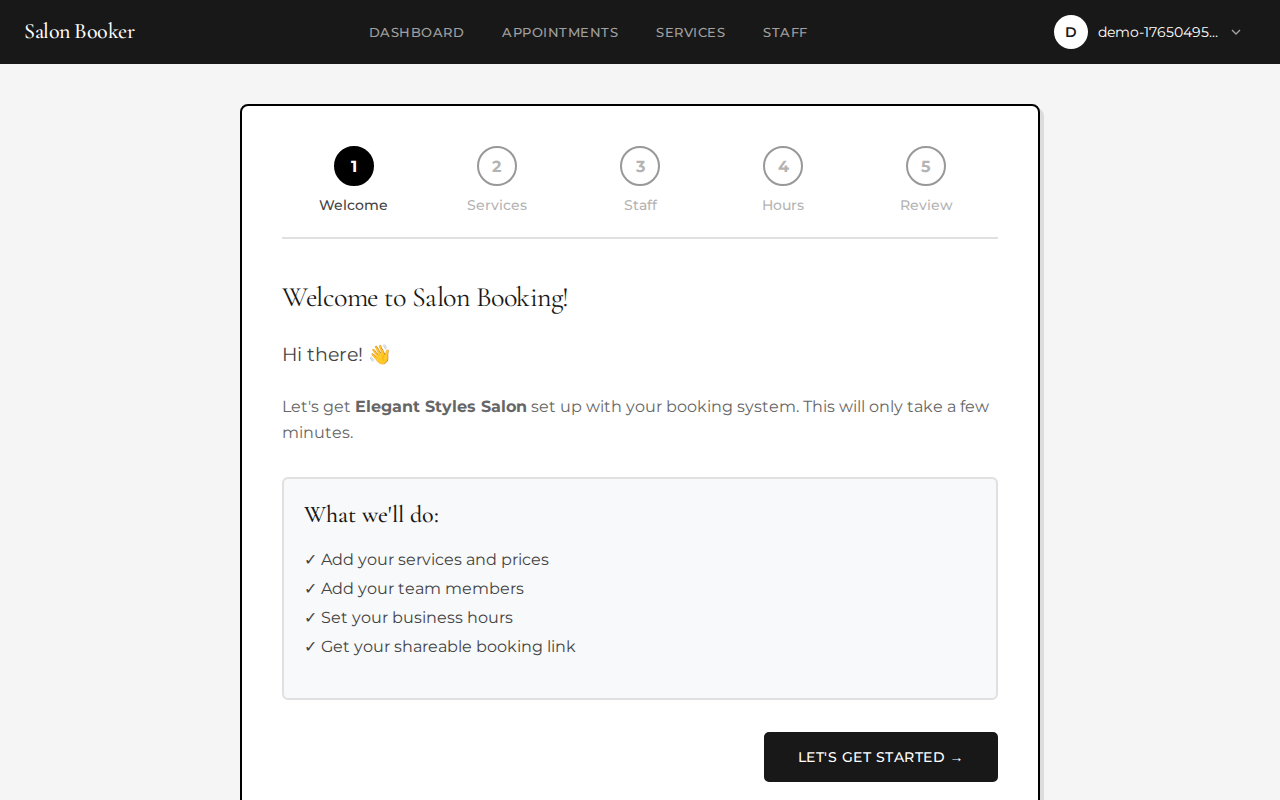
Click "View Appointments" from your dashboard to see all bookings. Appointments are grouped by date for easy scanning.
Appointment Information
Each appointment card shows:
- Date and time
- Client name and phone number
- Services booked
- Assigned staff member
- Total duration and price
- Status badge
- Any notes from the client
Appointment Statuses
Each appointment has a status that you can use to track its progress:
- Confirmed — Upcoming appointment that's booked and ready
- Completed — Appointment has been finished
- Cancelled — Client cancelled the appointment
- No Show — Client didn't show up
Filtering Appointments
Use the filter buttons at the top to show only certain statuses. This is helpful when you want to see only upcoming confirmed appointments or review no-shows.
What Clients See When Booking
Understanding your client's experience helps you provide better service. Here's exactly what happens when someone visits your booking page:
Select Services
Client browses your services by category and selects what they want (up to 3 services).
Choose Time
Client picks their preferred stylist (or "First Available") and selects from open time slots.
Enter Details
Client provides their name, phone, email, and any special requests.
Confirm
Client reviews, pays deposit (if required), and receives a confirmation with reference code.
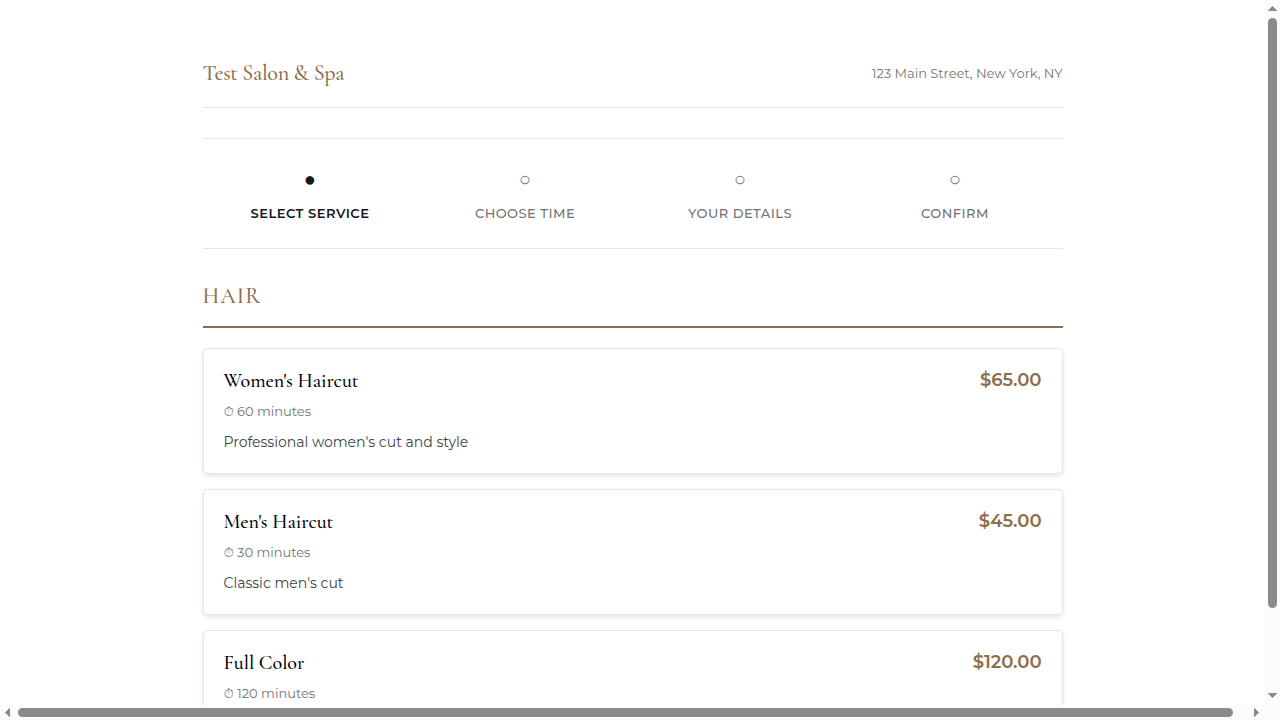
Service Selection
Services are grouped by category (Haircut, Coloring, etc.) making it easy for clients to find what they need. Each service shows the name, duration, and price. Clients can select 1-3 services per booking.
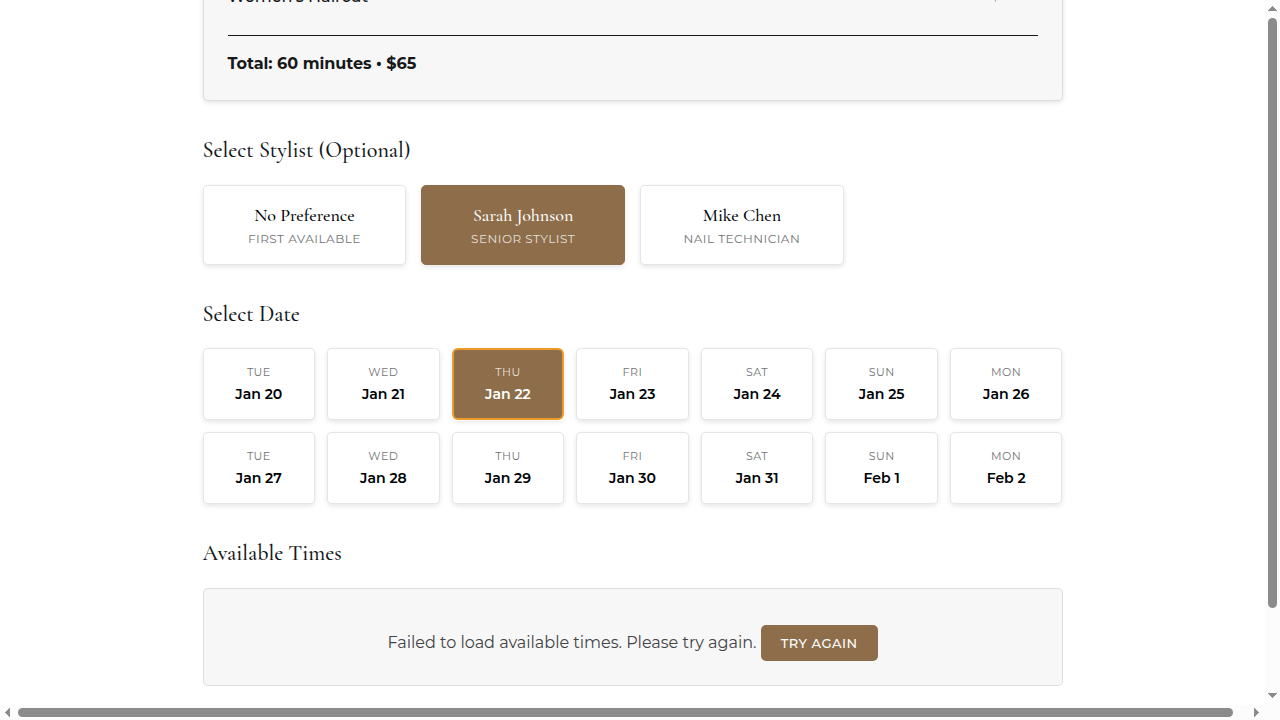
Time Selection
After selecting services, clients choose their preferred staff member or "First Available" for the next open slot with anyone. Available times are shown based on:
- Your business hours
- Staff working hours
- Service duration (longer services have fewer available slots)
- Existing appointments (no double-booking)
Clients can book up to 14 days in advance. Times that overlap with closures or holidays won't be shown.
Client Details
Clients enter their contact information and any special requests. If you've enabled deposits, they'll pay securely before confirming.
Confirmation
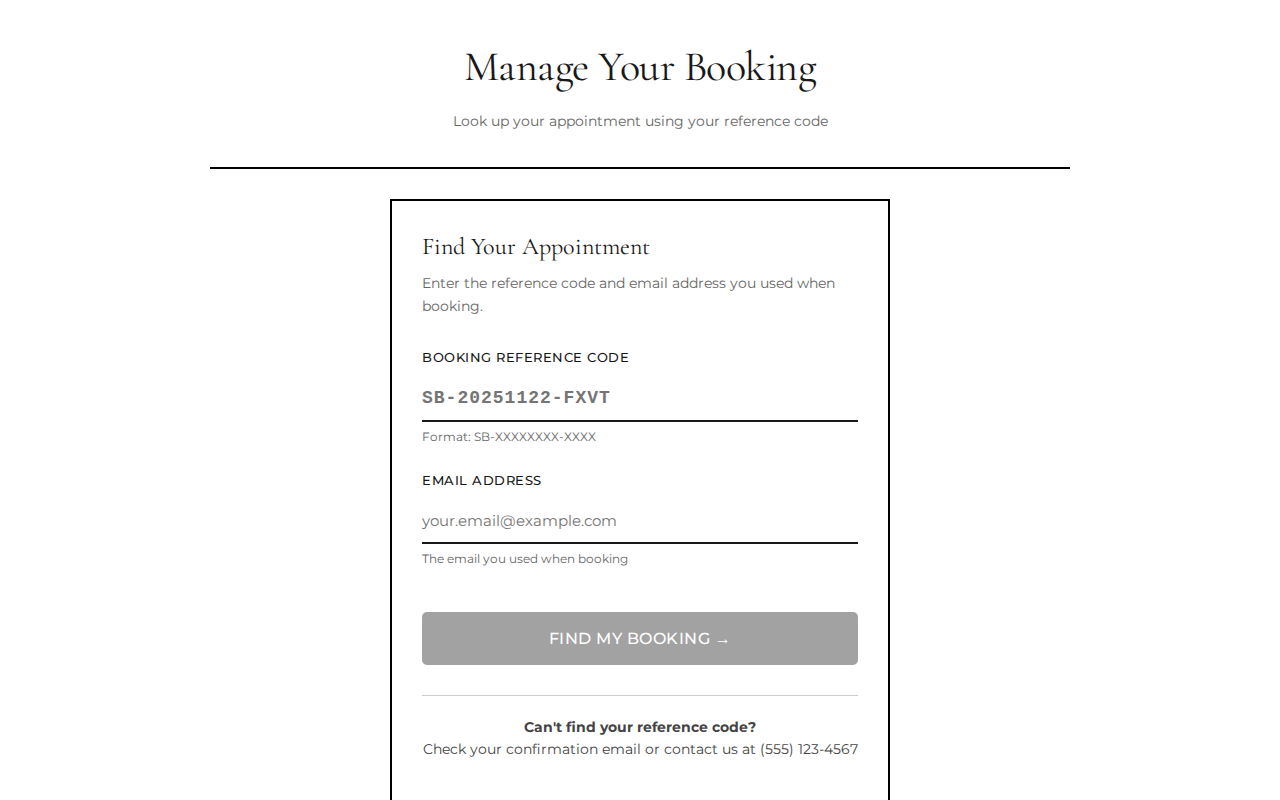
After booking, clients see a confirmation page with all the details and a reference code (like SB-20251206-A3B9). They'll also receive a confirmation email. They'll need this code to manage their booking later.
How Clients Manage Their Bookings
Clients can manage their own appointments using the "Manage Booking" page. They'll need their reference code and email address to look up their booking.
Client Options
Once they find their booking, clients can:
- Reschedule — Change the date/time of their appointment
- Change Services — Add or remove services from their booking
- Cancel — Cancel the appointment entirely
Cancellation Policy
The default cancellation policy requires 24 hours notice:
- More than 24 hours before: Full refund of deposit
- Less than 24 hours before: Deposit is forfeited
Clients receive their reference code by email and on the confirmation page. If they lose it, they'll need to contact you directly. Consider saving their phone numbers so they can reach you.